Fix: Cannot export in photoshop. For those who are new to photography, they often have the problem of not being able to save PNG files in Photoshop. So, what is the cause of this state? How is recovery? Let’s discover the answer with Theartcult.net in the article below.
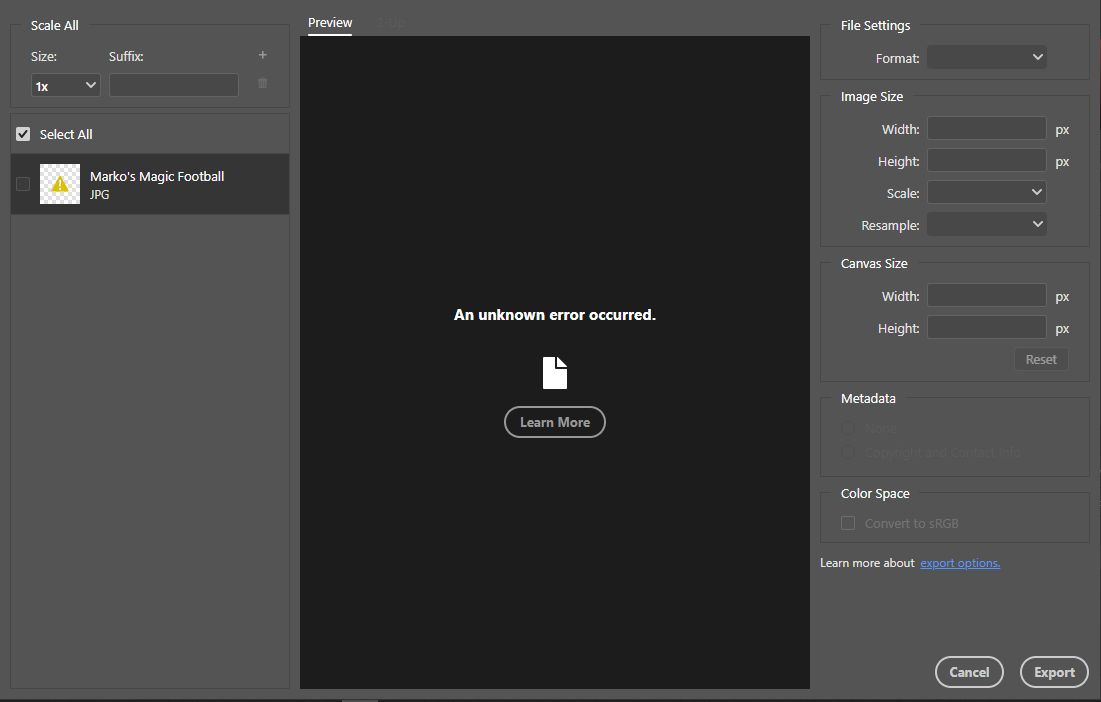
Why Cannot export in photoshop?
The cause of the failure to save PNG files in Photoshop is that the color system of the image is not suitable for exporting to PNG files. Or maybe users use images searched on the Internet, whose color system is in the form of Indexed Color.
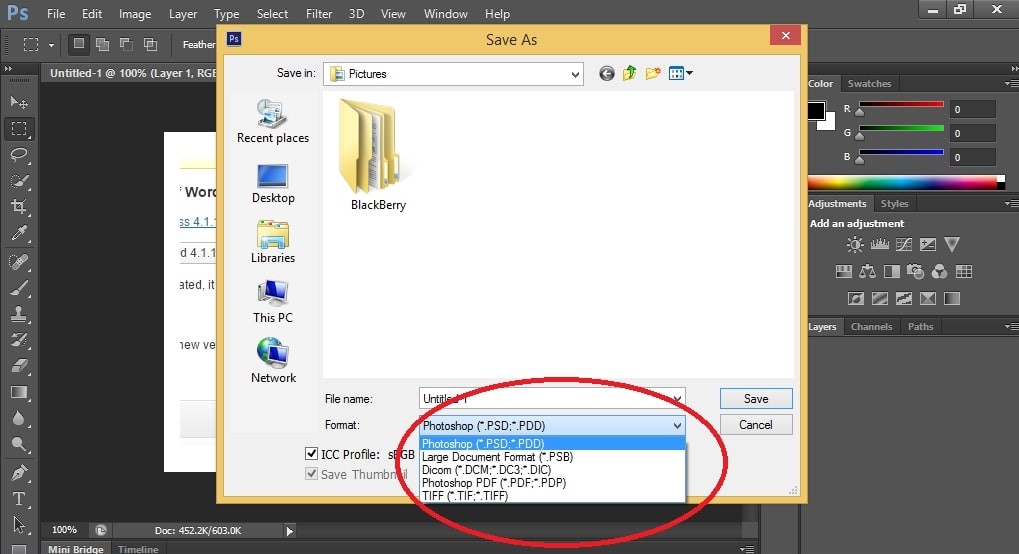
Can’t save PNG file in Photoshop because you left it color in Indexed Color mode
Quick recovery machine instructions
Select Image -> Select Mode -> Select Mode RGB Color -> File -> Select Save As -> Rectify as PNG.
Fix error Cannot export JPG, PNG files in Photoshop
In case you insert the logo and image to keep the copyright, but this image cannot be saved as PNG to output the product. Specifically, when you click Save As option and can’t find Save As option in PNG format.
Don’t worry, the project you’re working on is in CMYK color mode. Therefore, to save the image with PNG extension, you need to convert it to RGB color mode.
As simple as this:
You go to the menu select Image> Mode> select 8 bits / Channel -> Choose File -> Select Save As -> Save the image as PNG / JPG format. Thus, we have recovered the state of not being able to save PNG files in Photoshop. It’s simply wrong!
Also, it helps to go into your task manager and close all Photoshop processes. Then start Ps again and try the export.
Hopefully, through this article, you have “pocketed” a lot of useful information to make the process of learning Photoshop go more smoothly.
- Update Photoshop: Ensure you are using the latest version. Go to Help > Check for Updates within Photoshop or update via the Adobe Creative Cloud app.
- Restart Photoshop and your computer: A simple restart can often clear temporary glitches.
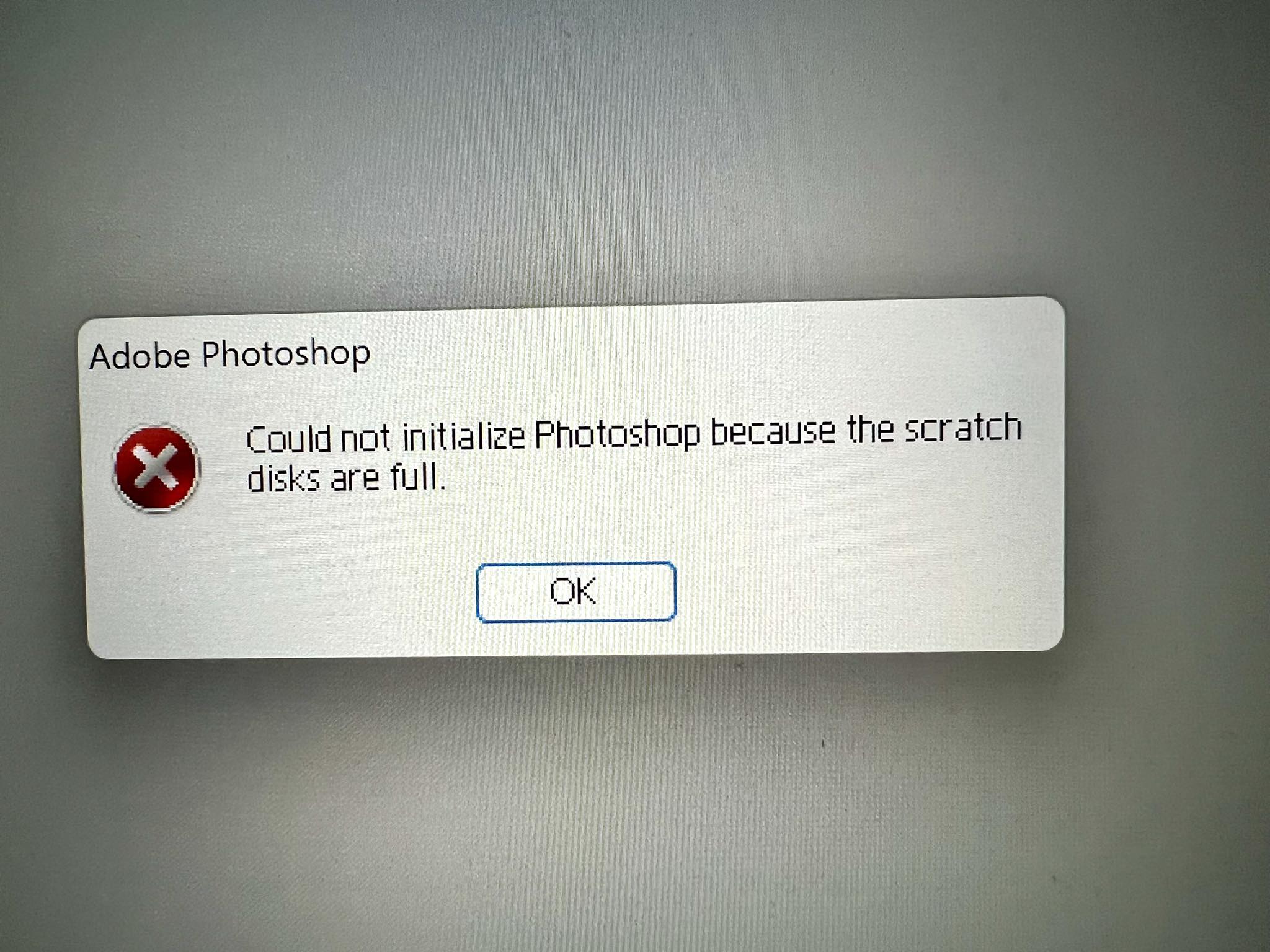
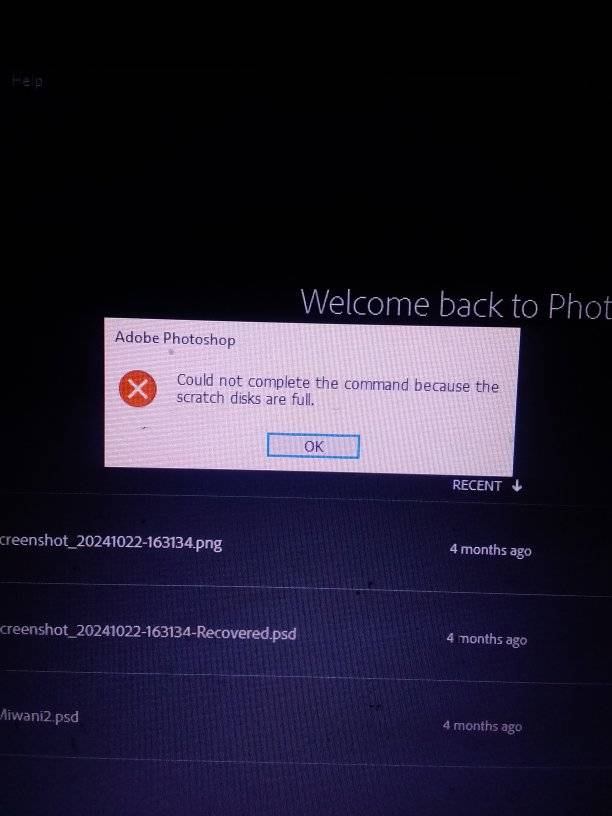
- Clear Scratch Disk Space: Photoshop needs sufficient space for temporary files during export. Check Edit > Preferences > Scratch Disks (Windows) or Photoshop > Preferences > Scratch Disks (Mac) and ensure your drives have at least 20 GB of free space.
- Try “Save a Copy”: If
File > Export > Export AsorQuick Exportfails, useFile > Save a Copyinstead. This function often bypasses export limitations and works for various formats like JPEG and PNG. - Use the Legacy Export Option: The newer “Export As” may have bugs. Enable the legacy version in Edit > Preferences > Export and check the box for
Use Legacy "Export As".
- Color Mode Limitations: Some formats are incompatible with certain color modes. For example, PNG files cannot be saved in CMYK mode, which is for printing.
- Solution: Change the color mode by going to Image > Mode > RGB Color.
- Large Dimensions (Pixel Limits): The “Export As” feature has a pixel limit (e.g., 15,000px on the longest edge). If your image is larger, use File > Save a Copy to save the full size.
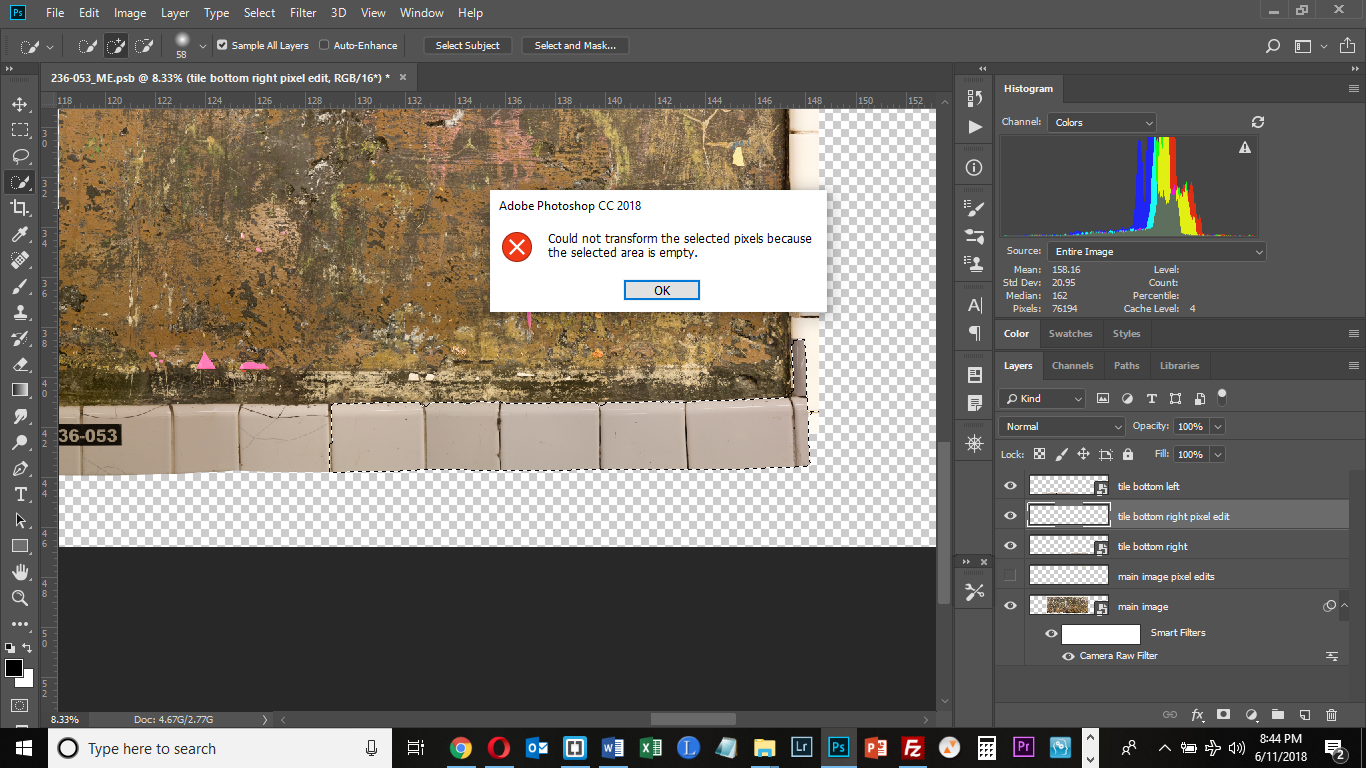
- Locked or Empty Layers: Ensure the layer you are trying to export is visible and not empty. Right-clicking a specific layer and choosing “Quick Export as PNG” might fail if the layer is corrupted or has no content.
- File Permissions: You might not have the necessary permissions to save to the selected folder (e.g., a drive formatted in exFAT shared between Mac and PC). Try saving to a different location, such as your desktop.
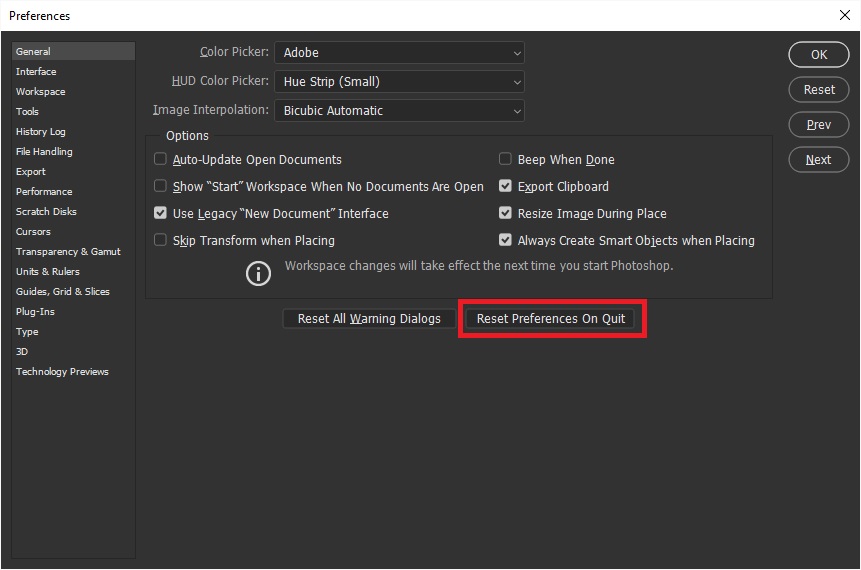
- Reset Photoshop Preferences: Corrupted preferences are a frequent cause of export issues.
- Close Photoshop. Reopen it while holding Ctrl + Alt + Shift (Windows) or Cmd + Option + Shift (Mac). A prompt will ask if you want to delete the settings file; confirm this action.
- Check GPU Settings: Issues with the graphics processor can interfere with the export process.
- Go to Edit > Preferences > Performance.
- Uncheck
Use Graphics Processorand restart Photoshop. If this solves the issue, update your GPU drivers.
- Disable Third-Party Plugins: Plugins can sometimes conflict with Photoshop’s core features.
- Go to Edit > Preferences > Plug-ins and uncheck
Enable Generatoror other third-party extensions.
- Go to Edit > Preferences > Plug-ins and uncheck
- Reinstall Photoshop: If all else fails, a corrupted installation may require a full reinstall using the Creative Cloud app