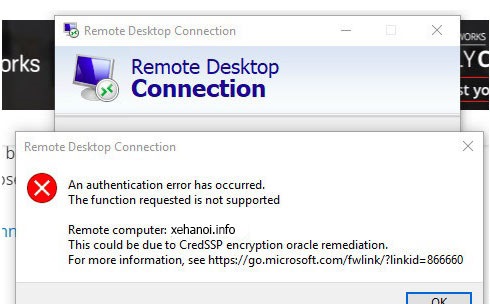
Fixed: This could be due to CredSSP encryption oracle remediation, .Some recent Windows updates (May 2018) increase security, affecting the Windows Remote Desktop application. When you open the Remote Desktop application to connect to the Server or VPS, you get the following error:
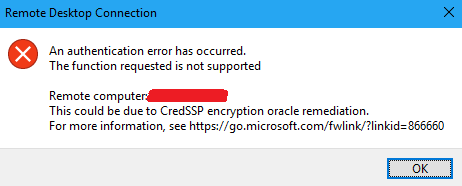
Fixed: This could be due to CredSSP encryption oracle remediation,
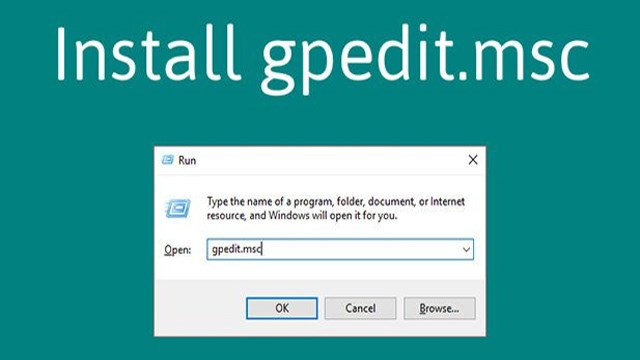
- Press the Windows key + R, type
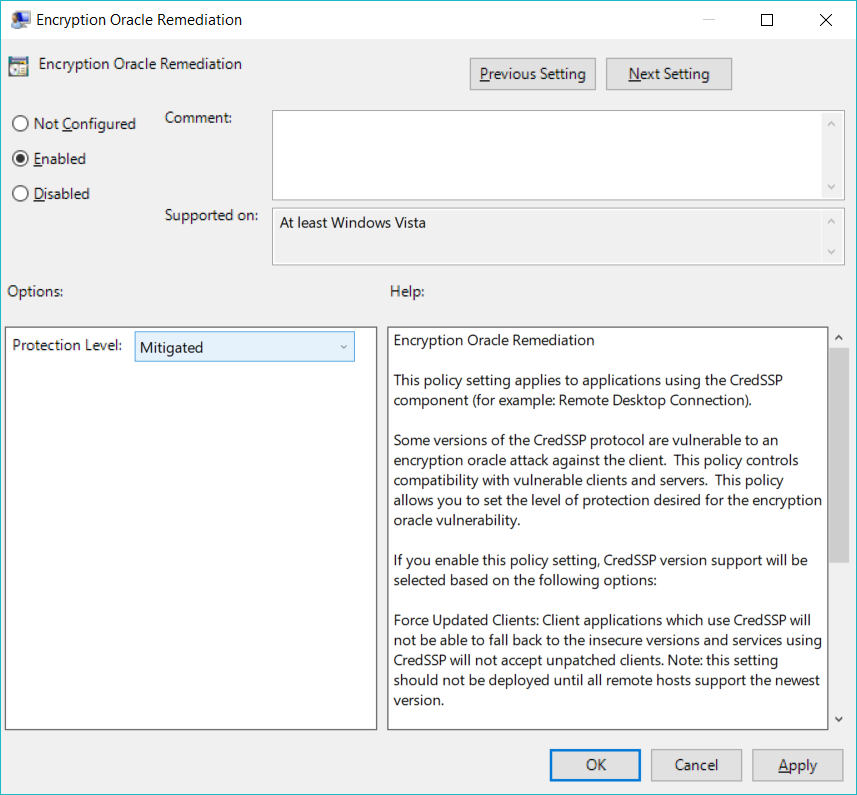
gpedit.msc, and press Enter. - Navigate to Computer Configuration > Administrative Templates > System > Credentials Delegation.
- Double-click the Encryption Oracle Remediation policy.
- Select Enabled, then change the Protection Level to Vulnerable from the dropdown menu.
- Click Apply and OK.
- Try your RDP connection again.
- Press the Windows key + R, type
regedit, and press Enter. - Navigate to
HKEY_LOCAL_MACHINE\SOFTWARE\Microsoft\Windows\CurrentVersion\Policies\System. - If a
CredSSPkey doesn’t exist, right-click on System, select New > Key, and name itCredSSP. - Inside
CredSSP, create another new key calledParameters. - Inside
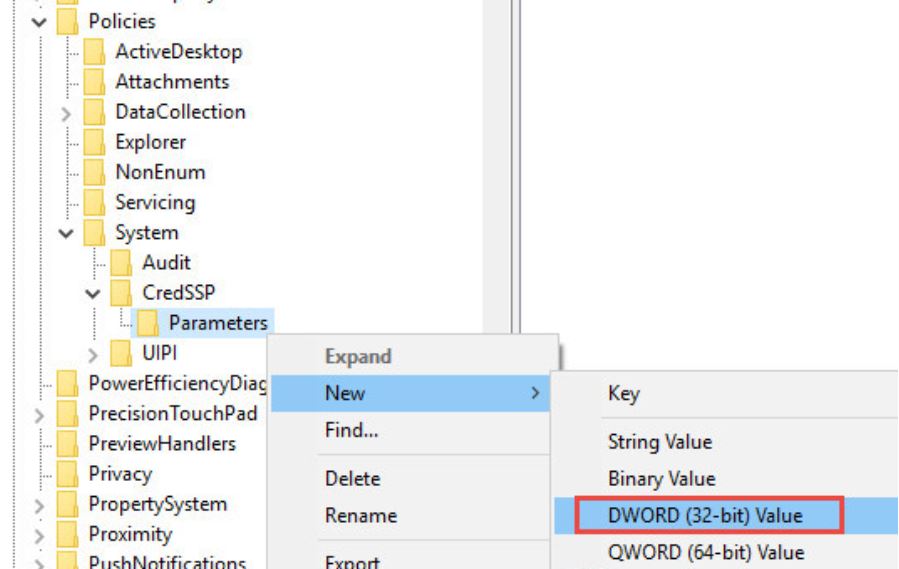
Parameters, right-click and select New > DWORD (32-bit) Value, and name itAllowEncryptionOracle. - Double-click
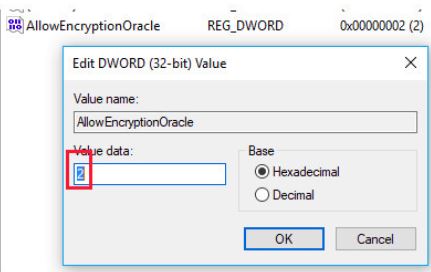
AllowEncryptionOracleand set its Value data to2(which means Vulnerable). - Close the Registry Editor and restart your computer.
Method 1: CMD OR COMMAND LINE AS ADMIN
You can launch the following from an elevated (administrator-launched) CMD or command line:
REG ADD HKLM\Software\Microsoft\Windows\CurrentVersion\Policies\System\CredSSP\Parameters\ /v AllowEncryptionOracle /t REG_DWORD /d 2
Method 2: Regedit
Run “regedit.exe” and go to HKEY_LOCAL_MACHINE\SOFTWARE\Microsoft\Windows\CurrentVersion\Policies\System\CredSSP\Parameters
There, add a DWORD value “AllowEncryptionOracle” and set it to 2.
Method 3: Local group policy editor
Run the command “gpedit.msc”. There, go to
Local Computer Policy\Computer Configuration\Administrative Templates\System\Credentials Delegation
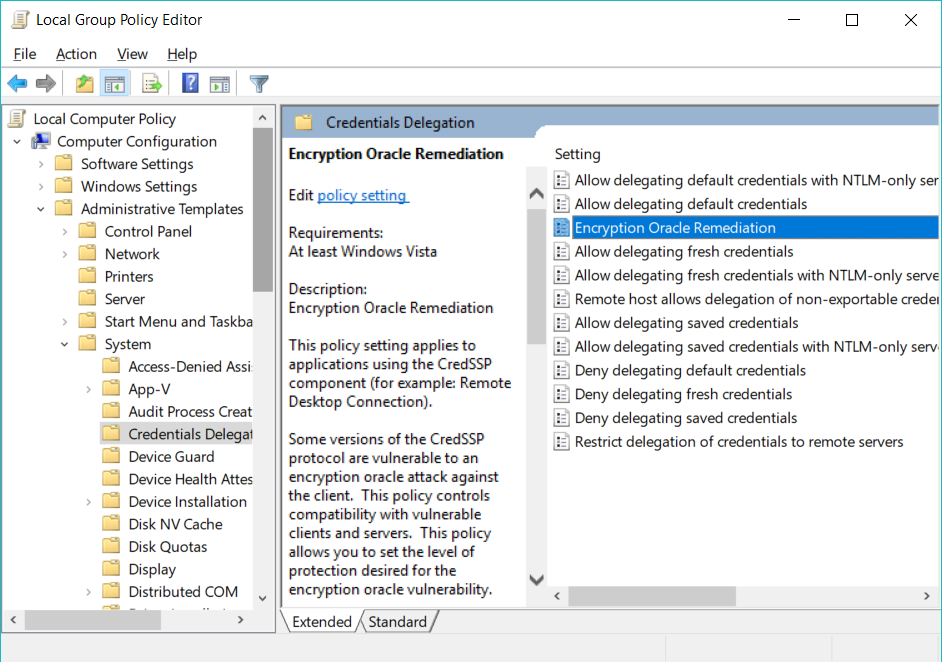
Double-click the line “Encryption Oracle Remediation”. Set it to Enabled with Protection Level = “Mitigated”:
Method other
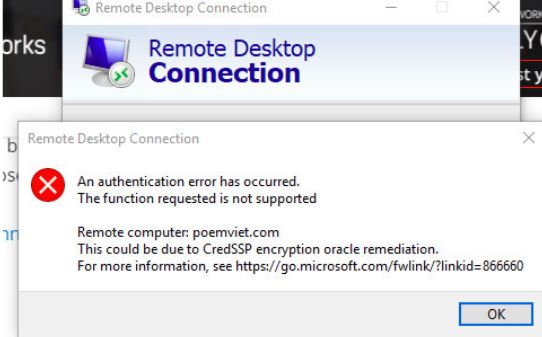
To fix this error you can follow the steps below:
Step 1: Press Windows key + R and type in regedit to open the registry.
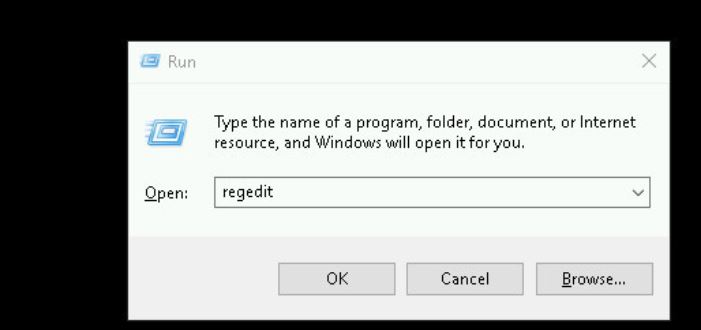
Step 2: Go to the path [HKEY_LOCAL_MACHINE\SOFTWARE\Microsoft\Windows\CurrentVersion\Policies\System and create a CredSSP key if you don’t have one.
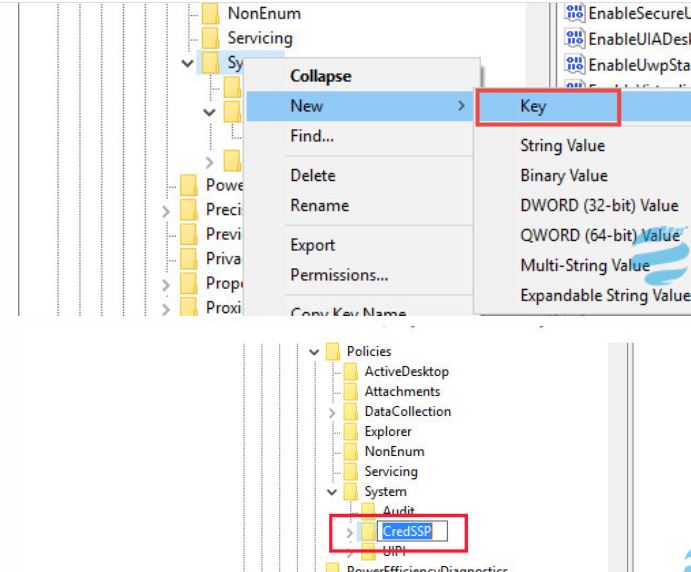
Step 3: Create the Parameters key inside the CredSSP key
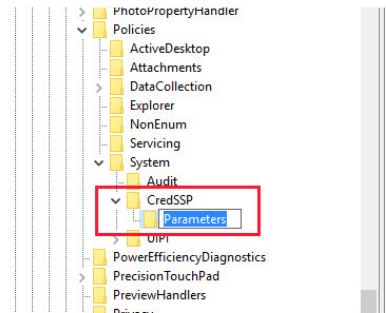
Step 4: In Parameters create DWORD Value and name it AllowEncryptionOracle
Step 5: Double click on AllowEncryptionOracle key and set Value data to 2
Next, try to proceed with the remote again and see the results.
Video fix credssp encryption oracle remediation
This could be due to CredSSP encryption oracle Remediation Windows Server 2012,
Hướng dẫn sửa lỗi This could be due to CredSSP encryption oracle remediation,
Không có encryption oracle remediation,
CredSSP encryption oracle remediation registry,
CredSSP Windows Server 2012,
This could be due to credssp encryption oracle remediation youtube,
Encryption oracle remediation not found Windows Server 2016,
Encryption Oracle Remediation missing from,