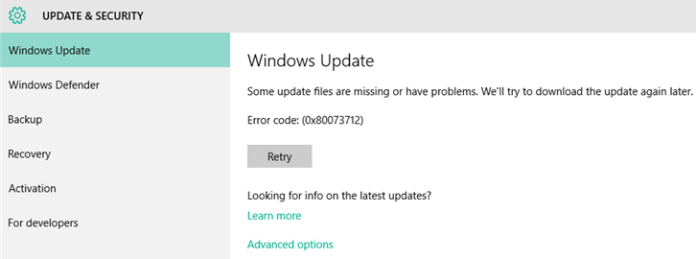
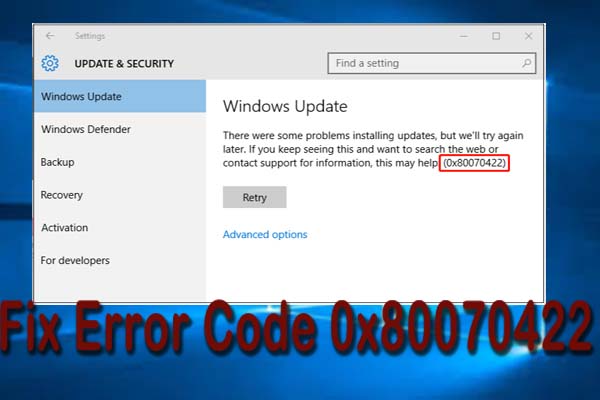
Fix error: Update Win 10 0x80070422 some update files are missing .Error 0x80073712 when installing Windows Update in Windows 10: Fix error: some update files are missing or have problems. we’ll try to download the update again later. error code: (0x80073712)
Fix error: Update Win 10 0x80070422 some update files are missing
- Press the Windows key + R, type
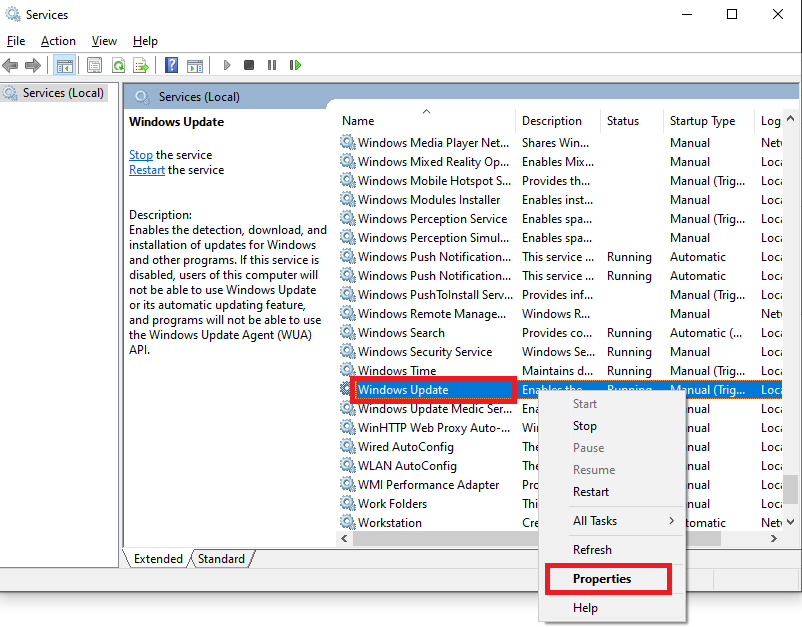
services.msc, and press Enter. - Scroll down and locate the Windows Update service in the list.
- Right-click on it and select Properties.
- In the “General” tab, change the Startup type to Automatic from the dropdown menu.
- If the “Service status” is “Stopped”, click the Start button to run the service.
- Click Apply and then OK to save the changes.
- Restart your computer and try running Windows Update again.
- Right-click the Start button and select Settings.
- Go to Update & Security and then select the Troubleshoot tab on the left panel.
- Under “Get up and running” or “Additional troubleshooters”, select Windows Update.
- Click Run the troubleshooter and follow the on-screen prompts.
- Background Intelligent Transfer Service (BITS): Should be Automatic.
- Cryptographic Services: Should be Automatic.
- Network List Service: Right-click and select Restart to clear temporary issues.
- Right-click the Start button and select Network Connections.
- Click Change adapter options (you may need to scroll down).
- Right-click on your active network connection (e.g., Ethernet or Wi-Fi) and select Properties.
- Scroll down the list, uncheck the box next to Internet Protocol Version 6 (TCP/IPv6).
- Click OK to save the changes.
- Restart your computer. You can re-enable it later if this does not fix the problem.
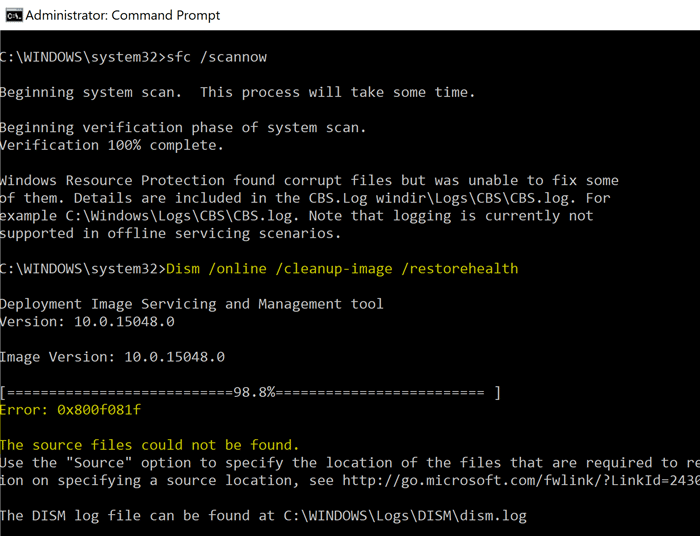
- Run System File Checker (SFC) and DISM tools: Open Command Prompt as an administrator and run
sfc /scannowfollowed byDISM /Online /Cleanup-Image /RestoreHealth. These tools check for and repair corrupted system files. - Use System Restore: If the error started recently, you can try performing a System Restore to revert your PC to a point where it was working correctly.
Error 0x80073712 (ERROR_SXS_COMPONENT_STORE_CORRUPT) indicates that the component repository (WinSxS folder) is corrupted. If you examine the CBS.log file, it will have the following entries:
Info CBS Failed to resolve execution chain. [HRESULT = 0x80073712 - ERROR_SXS_COMPONENT_STORE_CORRUPT]

Error CBS Failed to process single phase execution. [HRESULT = 0x80073712 - ERROR_SXS_COMPONENT_STORE_CORRUPT]

Info CBS WER: Generating failure report for package: Package_for_DotNetRollup~31bf3856ad364e35~amd64~~10.0.1.3012, status: 0x80073712, failure source: Resolve, start state: Absent, target state: Installed, client id: WindowsUpdateAgent
Running the command DISM.exe /Online/Cleanup-image/RestoreHealth to repair parts store may throw error 0x800f081f:
How to fix Windows Update error 0x80073712
Windows built-in tools and services are the most effective resource for troubleshooting and resolving this issue.
1. Scan the system for malware.
2. Download and run Windows Update Troubleshooter. Microsoft provides the tool for free. When it’s done, restart your computer and check for updates.
3. Run the built-in Windows troubleshooter.
4. Run a scan System File Checker.
5. Perform a DISM scan: Deployment Image Servicing and Management (DISM.exe) is a command-line tool that can find and repair corrupted system images or files. After running the tool, restart your computer and try the update again.
6. Delete pending files.
7. Restart the Windows Update service.
8. Restore, refresh or reset PC: This action should only be taken as a last resort, if none of the other troubleshooting methods above resolve the error code 0x80073712.